
Using a Samsung Galaxy Watch for Blood Sugar Tracking During Workouts
Learn how to set up your Samsung Galaxy Watch with a Dexcom G7 or FreeStyle Libre 3 to see real-time glucose data on your wrist during home workouts, including workout-specific alert thresholds and app setup steps.
- Price
- $75-150/month for Dexcom G7 or $40-75/month for FreeStyle Libre 3
- Noise rating
- Silent
No Samsung Galaxy Watch measures blood sugar by itself. The FDA said in February 2024 that it has not authorized any smartwatch or smart ring to measure blood glucose on its own, and that is the guardrail to keep in mind before buying a watch for “blood sugar tracking.”[1]
What can work is more specific: a Galaxy Watch 4 or newer can act as a wrist display for continuous glucose monitor data when the real measurement is coming from a CGM sensor such as Dexcom G7, Dexcom G6, or FreeStyle Libre 3, with a compatible Wear OS app moving the data onto the watch.[2] That distinction matters during workouts. A glance at the wrist while doing squats or pedaling an indoor bike is useful. Believing the watch itself is measuring glucose is not.
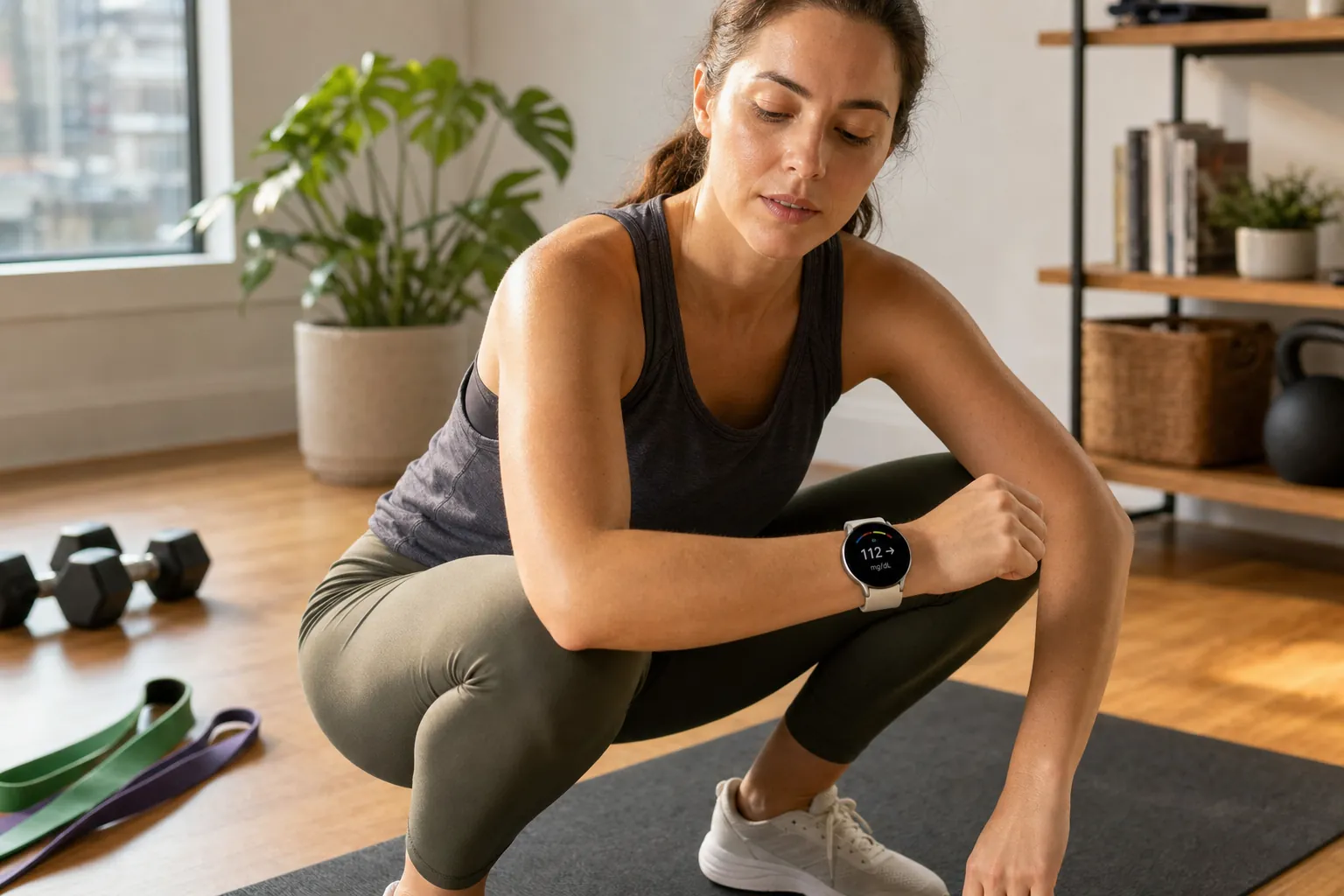
There is also a cost reality that should appear before the setup steps, not after a watch purchase. The Galaxy Watch is only the display. Dexcom G7 sensors are a separate recurring expense, roughly $75-150 per month, and FreeStyle Libre 3 sensors are also separate, roughly $40-75 per month. The exact out-of-pocket cost depends on insurance, pharmacy pricing, location, and eligibility programs, but the important buying decision is simple: the watch does not replace the CGM.
The Data Path Is Sensor, Phone, Watch
For workout use, the cleanest way to think about Galaxy Watch glucose tracking is a three-part chain: the CGM sensor measures glucose, the phone receives or shares the CGM data, and the Galaxy Watch displays that data through a Wear OS companion app. The watch is not talking directly to the sensor.
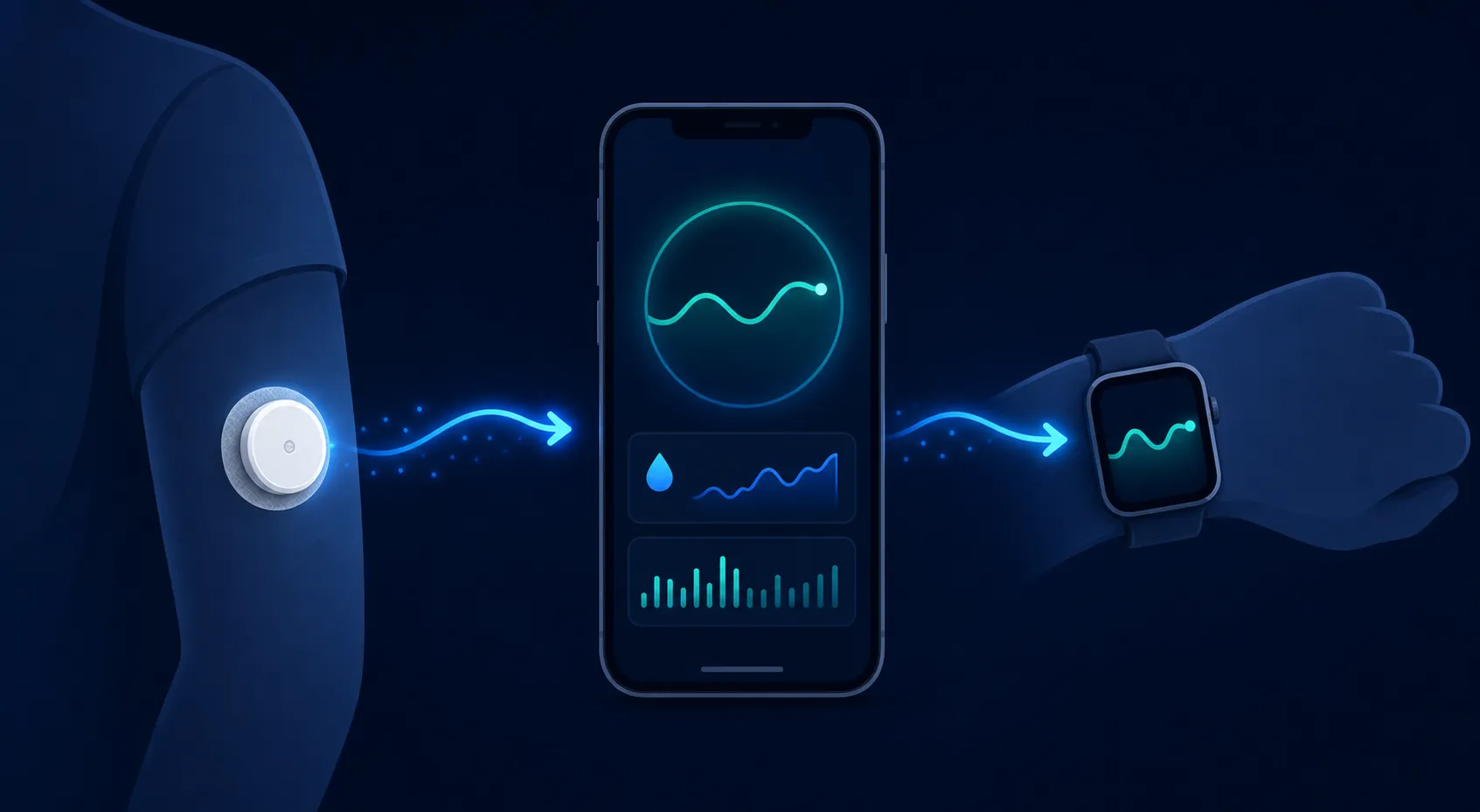
That phone step is not a tiny technicality. Dexcom explains that smartwatch display depends on the phone being nearby, with a typical range of about 20 feet.[3] In a small apartment workout, that usually sounds fine until the phone is charging in the bedroom, the Bluetooth path is blocked by a wall, or the bike is in the corner farthest from the table. Before starting a session, put the phone where it will actually stay connected.
| If you use | The usual watch path | Best fit |
|---|---|---|
| Dexcom G7 or Dexcom G6 | Dexcom app on phone, then Gluroo or Blose to Wear OS | Most direct setup for a Galaxy Watch display |
| FreeStyle Libre 3 | Libre app and LibreLinkUp sharing, then Gluroo to Wear OS | Best current path for Libre users who want Galaxy Watch visibility |
| Another CGM or older watch | Check current app listings before buying anything | Compatibility can change by watch model, phone, region, and app version |
Galaxy Watch 8 does not change that measurement chain. Its 3000-nit display can make readings easier to see in bright light, which matters if part of your workout moves outdoors or near a sunny window, but display brightness is not a glucose-measurement breakthrough.[4]
Dexcom G7 or G6 Setup
The Dexcom route is the one I would treat as the first setup to try on a Galaxy Watch, because it has two practical Wear OS companion options: Gluroo and Blose. Gluroo is the broader, more feature-rich free option and supports Dexcom and Libre workflows; Blose is simpler and Dexcom-only.[5][6]
- Confirm that your Galaxy Watch is a Wear OS model, meaning Galaxy Watch 4 or newer.
- Set up Dexcom G7 or G6 on the phone first and confirm that the phone app is receiving live readings.
- Install Gluroo or Blose on the phone, then install the matching Wear OS app or watch face on the Galaxy Watch.
- Grant the app permissions it needs and follow its Dexcom connection instructions.
- Wait until the watch shows a glucose value and trend direction, then compare it with the phone before relying on it during a workout.
- Walk to the workout area with the phone left in its planned spot and confirm the watch keeps updating.
That last check is the one generic setup guides often skip. A watch face that works while you are standing over the phone may not help during a dumbbell circuit if the phone is across the room, buried under a towel, or just far enough away to miss updates.
Gluroo deserves the first look if you want more controls and broader CGM support. Blose is worth considering if you use Dexcom and want something more stripped down. G-Watch Wear is another Wear OS companion app people may see recommended, but the safe move is to verify its current Play Store listing, CGM support, watch support, and recent update history before making a purchase decision around it.
There is one compatibility wrinkle with Gluroo that is worth checking rather than discovering ten minutes before a workout. Gluroo adopted Watch Face Format for Wear OS 5 in May 2025, and older watch faces broke during that transition; users may need to reinstall or choose current watch faces depending on their watch software.[5] By Q3 2026, the exact app behavior may have changed, so check the current listing and recent support notes before buying a Galaxy Watch mainly for Gluroo.
FreeStyle Libre 3 Setup
FreeStyle Libre 3 can also show up on a Galaxy Watch, but the path is different. Gluroo does not simply replace the Libre app. The practical route is Libre data sharing through LibreLinkUp, then Gluroo pulls that shared data and displays it on Wear OS.[5]
- Set up FreeStyle Libre 3 on the phone and confirm that readings are updating there.
- Set up LibreLinkUp sharing, because this is the service Gluroo uses to access shared Libre data.
- Install Gluroo on the phone and connect it to the LibreLinkUp data source.
- Install the Gluroo Wear OS app or compatible watch face on the Galaxy Watch.
- Confirm that the watch reading, phone reading, and update timing make sense before starting exercise.
- Test the phone’s location in the actual workout space, not just while sitting next to it.
The Libre path has more account plumbing than the Dexcom path, so give yourself time to test it on a non-workout day. The watch display is only helpful if you trust the data path enough that you are not stopping every set to unlock the phone and check whether the watch is still current.
Set Workout Alerts Before You Start Moving
For home workouts, the watch display is only half the setup. The other half is deciding when it should interrupt you. DiabetoTech recommends raising the low-glucose alert threshold to about 90-100 mg/dL during exercise, rather than waiting for the standard 70 mg/dL low alert, so there is more time to react.[6]
That recommendation is easy to understand once you have tried to finish a circuit while glucose is already sliding. A 70 mg/dL alert may be clinically familiar, but during movement it can arrive after the useful decision point. A 90 or 100 mg/dL exercise alert gives you a chance to pause, check the trend, and follow your own treatment plan before the session turns into a scramble.
The type of home workout changes what you should expect. Dexcom’s exercise guidance notes that aerobic activity tends to lower glucose, while anaerobic exercise or HIIT can sometimes raise it because of adrenaline.[7] On a watch, the trend arrow is the part that makes the number useful. A 112 mg/dL reading with a flat arrow during mat work is not the same situation as 112 mg/dL with a downward arrow halfway through indoor cycling.
| Home workout | What to watch closely | Why the wrist display helps |
|---|---|---|
| Indoor cycling or jogging-in-place | Downward trend arrows and low alerts | Steady aerobic work may lower glucose during the session |
| Bodyweight circuits | Direction changes between rounds | Pauses between sets are good moments to glance without unlocking a phone |
| Resistance bands or dumbbells | Delayed drops after longer sessions | The watch keeps the trend visible while hands are busy |
| HIIT intervals | Temporary rises as well as drops | A spike may reflect intensity and adrenaline, not just food or sensor error |
| Yoga, stretching, or mat work | Slow declines that are easy to miss | A quiet vibration can be less disruptive than repeated phone checks |
The American Diabetes Association’s exercise position statement says that for people at risk of hypoglycemia, starting exercise in a 150-200 mg/dL range can reduce hypoglycemia risk.[8] Treat that as a safety reference, not a personal prescription. Your clinician’s plan, insulin timing, medication use, food, recent lows, and workout intensity matter more than any generic article can know.
A Simple Pre-Workout Check
- The CGM is active and the phone app is showing current readings.
- The Galaxy Watch shows a value and trend arrow that match the phone closely enough for display use.
- The phone is within working range of the watch from the bike, mat, bench, or dumbbell area.
- Exercise low alerts are set higher than the usual low threshold if that matches your care plan.
- Fast carbs, water, and whatever your clinician has recommended are reachable without leaving the workout area.
- You know whether this session is likely to behave more like steady aerobic work, resistance training, or HIIT.
What Not to Buy
Do not buy a Galaxy Watch because a headline makes it sound like Samsung has shipped non-invasive blood sugar measurement. Samsung has discussed optical CGM development publicly, but that is not the same as a usable feature on current Galaxy Watch models.[4] If a product page, roundup, or social post does not clearly name the CGM sensor and the app path, assume it is skipping the most important part.
A Galaxy Watch makes sense for this job if you already have a supported CGM and want fewer phone checks during short home sessions. During a 30-minute workout, the value is not futuristic. It is practical: a readable number, a trend arrow, and an alert you can notice while your hands are on bands, dumbbells, handlebars, or the floor.
The final setup decision is fairly plain. For Dexcom G7 or G6, try Gluroo first if you want the broadest feature set, or Blose if you want a simpler Dexcom-only display. For FreeStyle Libre 3, expect to use Gluroo with LibreLinkUp. For any app, check current compatibility with your phone, Galaxy Watch model, Wear OS version, and CGM before spending money around the promise.
A Samsung Galaxy Watch is not a blood sugar monitor. Paired with a supported CGM, a nearby phone, and the right Wear OS app, it can be a very useful glucose display for home workouts. The setup is worth doing only if the full chain is clear: sensor cost, phone tethering, app compatibility, readable watch face, and exercise alerts set for the way you actually train.
References
- Do Not Use Smartwatches or Smart Rings to Measure Blood Glucose Levels: FDA Safety Communication, U.S. Food and Drug Administration, February 2024
- Samsung Galaxy Watch Blood Sugar Tracking, TechRepublic, May 2026
- CGM and Smartwatch, Dexcom
- Samsung Galaxy Watch Blood Sugar Tracking, eWeek, May 2026
- Gluroo for Wear OS, Gluroo
- Syncing Your CGM with Your Smartwatch, DiabetoTech
- Exercise Tips From a Dietitian, Dexcom
- Physical Activity/Exercise and Diabetes: A Position Statement of the American Diabetes Association, American Diabetes Association
Where this fits
Spot a spec or price issue?
Prices, specs, and safety notes change. If something here looks out of date, sign in or create a free account to flag it, or reach us via the About page.