
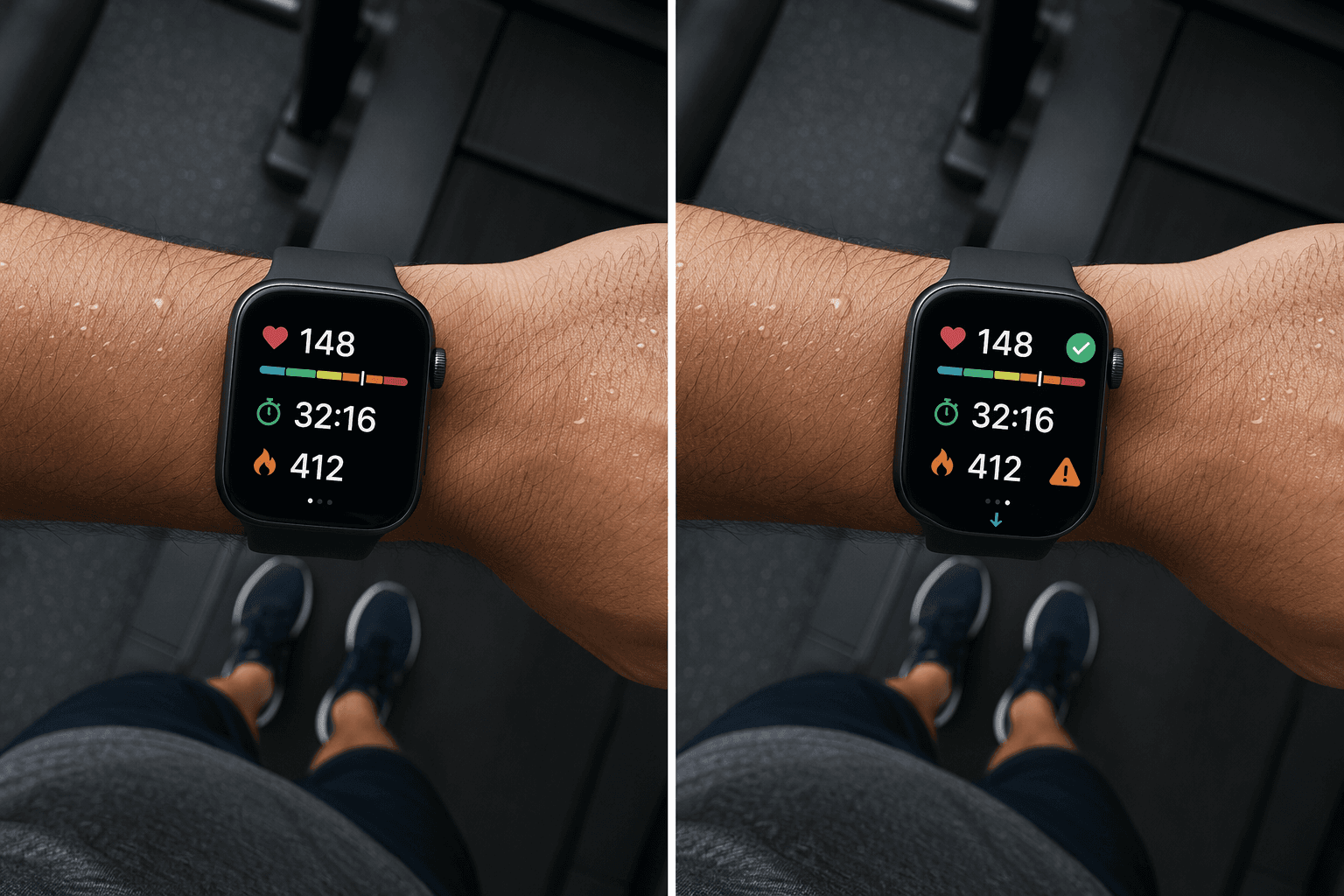
The Data-vs.-Results Gap: Why Your Smartwatch Isn't Making You Fitter
If you own a smartwatch, you've probably experienced this: you finish a workout, glance at your wrist, and see a wall of numbers — heart rate, calories, steps, active minutes, maybe a recovery score. You close your rings, feel a brief sense of accomplishment, and move on with your day. A week later, your fitness hasn't noticeably improved. The data came in, but nothing changed.
This is the gap most smartwatch owners never bridge. The device is collecting plenty of information, but collecting and training are two different things. The core thesis of this guide is straightforward: the key to getting real results from your smartwatch is using its heart rate zone data, recovery readiness scores, and trend metrics to structure your workouts actively — not just logging them after the fact.
The sections that follow will walk you through the specific features that actually drive adaptation — heart rate zones, recovery scores, structured workout programming, and trend analysis — and show you how to apply them to running, strength training, HIIT, and swimming. By the end, you'll have a repeatable system for turning your watch's data stream into measurable fitness improvements.
Heart Rate Zone Training: Set Your Zones and Structure Your Workouts
Heart rate zone training is the single most impactful feature your smartwatch offers for improving cardiovascular fitness. The concept is simple: your heart rate during exercise correlates directly with which energy system your body is using, and different zones produce different training adaptations. Zone 2 builds aerobic endurance and fat oxidation. Zone 4–5 work on lactate threshold and VO2 max. Most people spend their workouts in a middle gray area — too hard for endurance, too easy for high-intensity stimulus — and see mediocre results as a result.
The first step is making sure your zones are set correctly. Most watches calculate zones as a percentage of your estimated maximum heart rate (commonly 220 minus your age), but this formula is a population average and may not match your actual physiology. If your device allows it, set your zones based on your lactate threshold heart rate or your measured max HR from a hard effort. Garmin, Apple Watch, and Polar all support manual zone adjustment in their settings or companion apps.
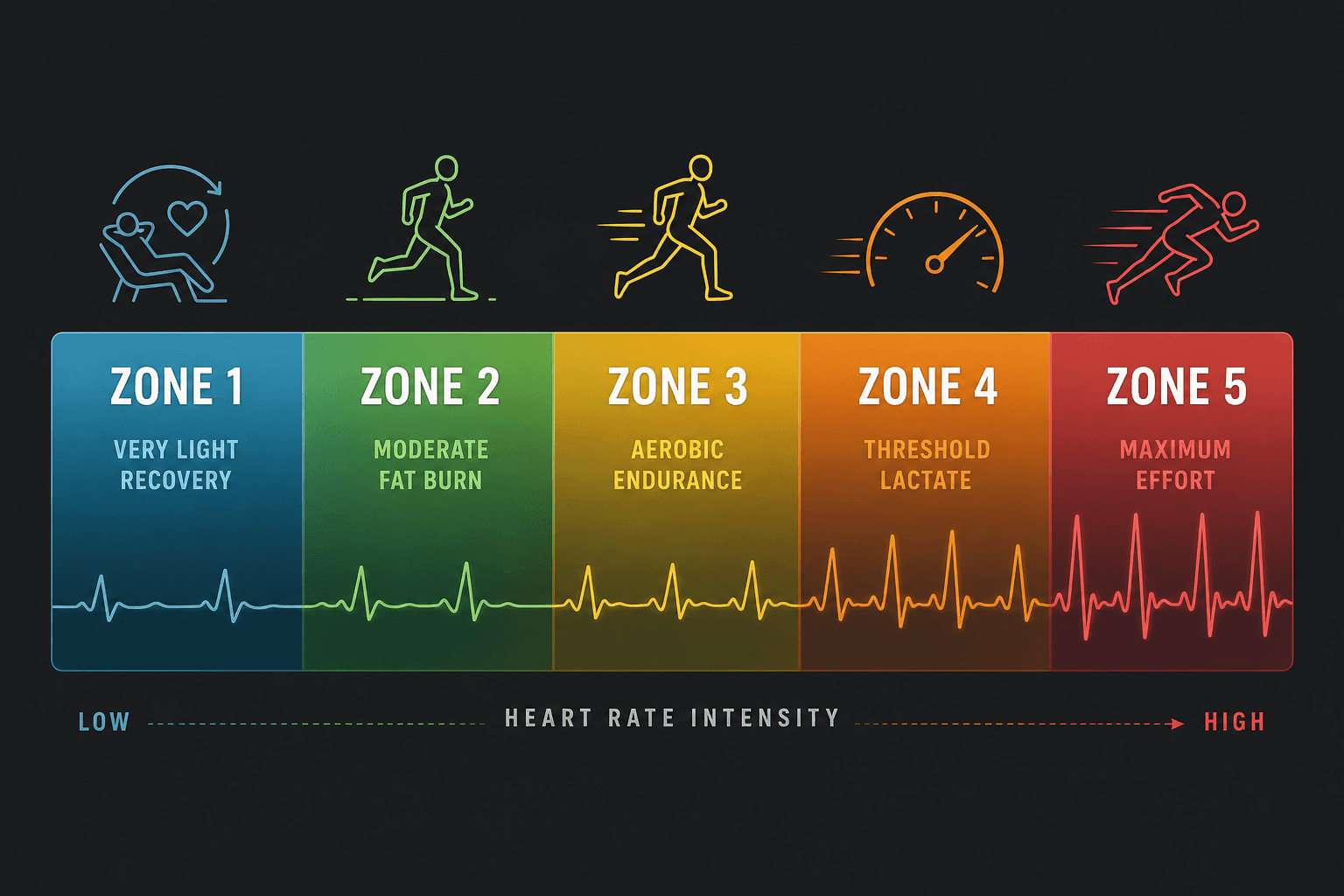
Once your zones are configured, use them to structure every workout. For an endurance session, keep your heart rate firmly in Zone 2 for the entire duration — this will feel frustratingly slow at first, which is exactly the point. For a high-intensity interval session, push into Zone 4 or 5 during work intervals and recover in Zone 1 or 2 between efforts. The watch's real-time display lets you pace yourself precisely rather than guessing.
The results can be significant. In a 30-mile test across five smartwatches, CNET's tester used structured zone-based runs guided by wearable data and saw their VO2 max rise from 41.3 to 45.8 over six weeks — a gain of roughly 11%. That's the difference between an average and a good aerobic base for most recreational athletes.
Recovery Readiness Scores: When to Push and When to Rest
Training adaptation doesn't happen during the workout — it happens during recovery. Your smartwatch's recovery or readiness score (called Body Battery on Garmin, Recovery on Whoop, Readiness on Oura, and cardio recovery on Apple Watch) combines heart rate variability, resting heart rate, and sleep data into a single daily metric that tells you how prepared your body is for training stress.
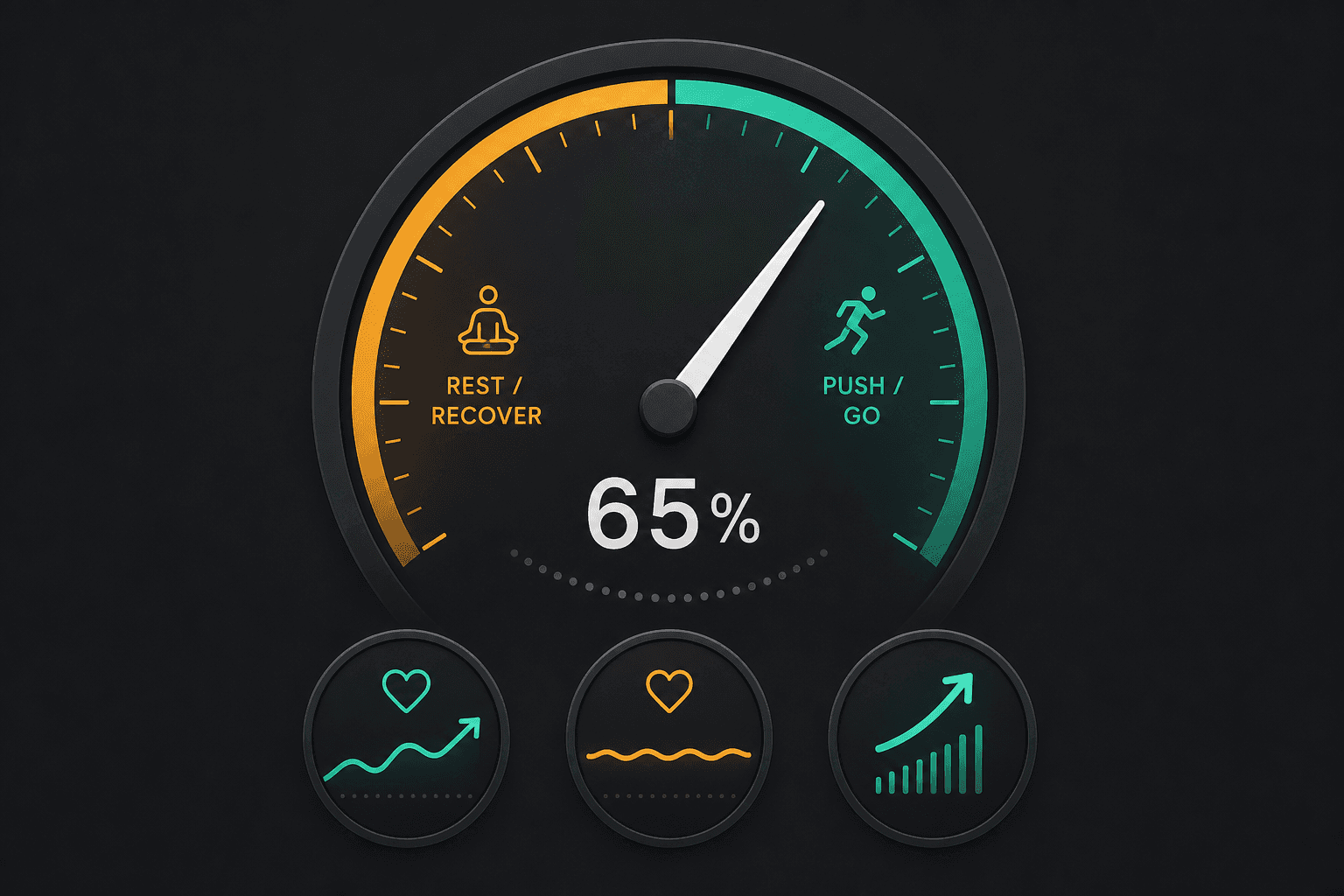
The practical decision framework is simple:
- Green / high readiness: Your nervous system is recovered. Do your planned hard session — intervals, heavy strength work, or a long run.
- Yellow / moderate readiness: Your body is partially recovered but not fully. Do a moderate session at Zone 2 or a lighter strength day. Avoid max-effort work.
- Red / low readiness: Your HRV is suppressed and your resting heart rate is elevated. Take an active recovery day — walking, light stretching, or foam rolling. Pushing through a red score increases injury risk.
Industry data suggests that using recovery readiness scores to guide training decisions can reduce injury risk by 25–35%. The mechanism is straightforward: most overuse injuries happen when athletes train hard while still under-recovered. A readiness score that flags a low-recovery day gives you permission to back off before you accumulate enough fatigue to get hurt.
If you're new to HRV and readiness scores, our explainer on recovery metrics covers how each system works and what the numbers mean. For a practical follow-up on turning those numbers into daily decisions, see this guide on using wearable recovery data.
Setting Up Structured Workouts on Your Watch
The most underused feature on most smartwatches is the ability to create and follow a structured workout directly on the device. Instead of starting a generic "outdoor run" or "strength" session and letting the watch passively record, you can program a session with warm-up, main set, cool-down, target heart rate zones, and rest intervals — and the watch will guide you through it in real time.
Here is how the three major ecosystems handle structured workouts:
| Platform | Structured Workout Feature | Best For |
|---|---|---|
| WHOOP 5.0 | Strength Trainer: build custom workouts with exercises, supersets, and intervals. Tracks muscular load via accelerometer/gyroscope alongside cardiovascular load for a holistic Strain score (0–21). AI Coach provides Strength Trainer Trends for long-term analysis. | Gym-goers and strength athletes who want muscular load data beyond heart rate. |
| Apple Watch (with Strong app) | Strong app: log sets, reps, and rest times manually. Syncs to Apple Health. No automatic rep counting, but provides a clean interface for tracking progress session by session. | Casual gym users who prefer manual logging and want a simple, reliable tracking interface. |
| Garmin (Forerunner, Venu, Fenix) | Garmin Workouts: create interval sessions, strength routines, and pace-based workouts in Garmin Connect. Sync to the watch. Supports rep counting on select models during strength training. | Runners and multi-sport athletes who want structured interval programming and pace coaching. |
To build a simple session, start with a warm-up block (5–10 minutes at Zone 1–2), then a main set with target zones or rep counts, and finish with a cool-down. On Garmin, you can program intervals with specific duration, distance, or heart rate targets. On WHOOP, you can build a strength workout exercise by exercise, including rest periods between sets. On Apple Watch, the Strong app lets you create templates that you reuse each session.
If you're considering pairing a workout-tracking app with your watch, our comparison of apps vs. wearables can help you decide whether you need both.
Trends Over Totals: Reading VO₂ Max, Resting Heart Rate, and HRV Over Weeks
One of the most common mistakes new smartwatch users make is obsessing over daily numbers. Your HRV might be 10 points lower than yesterday. Your resting heart rate might be three beats higher. Your readiness score might be yellow instead of green. None of these single-day fluctuations mean much on their own. They are noise, not signal.
The signal lives in the trends. Over a 4-to-8-week period, three metrics tell you whether your fitness is genuinely improving:
- VO2 max: A rising VO2 max over weeks of consistent training is the single best indicator that your cardiovascular system is adapting. The CNET tester's 11% improvement over six weeks is a realistic benchmark for someone who starts using zone-based training consistently.
- Resting heart rate (RHR): A gradually falling RHR — even by 2–5 beats per minute over 4–8 weeks — indicates that your heart is becoming more efficient. This is a lagging indicator; it changes slowly and reliably.
- HRV trend: A rising 7-day average HRV suggests improved recovery capacity and parasympathetic nervous system function. A falling trend over several weeks may indicate accumulated fatigue or insufficient recovery.
Most smartwatch companion apps (Garmin Connect, Apple Health, Whoop, Oura) display these metrics as trend graphs. Make it a habit to check the weekly or monthly view, not the daily number. If your VO2 max is trending up and your RHR is trending down over a month, you are getting fitter — regardless of what yesterday's readiness score said.
Workout-Specific Tips: Running, Strength, HIIT, and Swimming
Different workout types place different demands on your smartwatch's sensors, and knowing the limitations of each mode will help you get more useful data and avoid frustration.
Running
Running is where most smartwatches perform best. GPS accuracy on modern devices is excellent — CNET's 30-mile test found that none of the five tested watches deviated by more than 0.05 miles on a measured 1-mile track. Heart rate accuracy during steady-state running is also strong: the Apple Watch Series 11 was within 1.4 bpm of a Polar H10 chest strap during runs, and the Garmin Venu 4 was within 5.5 bpm.
For best results, use your watch's pace coaching or structured interval feature to stay in your target zone rather than running by feel. If your device supports it, calibrate the GPS by running a known distance (like a measured track) and letting the watch adjust its stride length calculation.
Strength Training
Strength training is the least accurately tracked activity type on most smartwatches. Wrist-based optical heart rate sensors struggle with the rapid changes in blood flow during heavy lifting, and no consumer wearable can measure muscle activation directly. Only WHOOP's Strength Trainer and select Garmin models offer meaningful muscular load data by using accelerometer and gyroscope data to estimate the mechanical stress of each rep.
For most users, the best approach is to log your sets and reps manually during the workout — either using the watch's built-in logging (Garmin, WHOOP) or a companion app like Strong on Apple Watch. The heart rate data from your watch is still useful for tracking overall session intensity and recovery between sets, but do not rely on it for precise calorie or effort measurement during strength work.
HIIT
High-intensity interval training exposes one of the biggest limitations of wrist-based optical heart rate sensors: lag. During rapid transitions from rest to max effort, the optical sensor can take 10–15 seconds to catch up to your actual heart rate. You might be breathing hard at 160 bpm while your watch still reads 120 bpm.
The practical fix is to use perceived exertion alongside the watch data. During a HIIT session, pay attention to how your breathing and muscle fatigue feel, and use the watch's heart rate reading as a confirmation tool rather than a real-time guide. If you need precise heart rate data for HIIT, a chest strap is still the gold standard.
Swimming
Swimming presents unique challenges: water blocks GPS signals, and optical heart rate sensors often lose contact with the skin during strokes. Most smartwatches handle this by using accelerometer-based lap counting and stroke detection instead of GPS. Enable water lock mode before entering the pool to prevent accidental screen touches, and understand that lap counting accuracy varies by stroke type and pool length. Freestyle is typically tracked most accurately; breaststroke and backstroke may produce more errors.
Common Mistakes That Skew Your Data
Even the best smartwatch will produce unreliable data if you make these common errors. The good news is that all of them are fixable.
- Trusting calorie numbers as absolute. A Stanford study of 7 devices found that the most accurate fitness tracker was off by an average of 27% for calorie burn, and the least accurate was off by 93%. A separate review of 22 brands and 36 devices found that calorie estimates were over- or underestimated by more than 30% on average. Use calorie data as a relative comparison between your own workouts — not as a measure of how much you can eat.
- Wearing the strap too loose during exercise. An optical heart rate sensor needs consistent skin contact. If the watch shifts during movement — common during strength training or HIIT — the reading will drop out or spike. Tighten the strap one notch during workouts and loosen it afterward.
- Not updating your weight, height, age, and sex in the device profile. These values are used to calculate calorie burn, VO2 max estimates, and zone ranges. If your weight has changed by more than 5 pounds since you set up the device, update it. An outdated profile produces systematically wrong estimates.
- Relying on uncalibrated GPS. Most users never calibrate their device, which is a primary source of distance and pace errors. A 20-minute outdoor run in a flat area with good GPS reception is usually enough to calibrate the stride length and improve accuracy significantly.
Calibration Guide: Getting the Most Accurate Data From Your Device
Calibration is the single most effective thing you can do to improve your smartwatch's accuracy for distance, pace, and calorie estimates. Most devices ship with generic stride length and sensor baselines. A calibration run teaches the watch your actual gait and movement patterns.
Here is a universal calibration protocol that works across most brands:
- Find a flat, open area with good GPS reception — a park, a track, or a quiet street without tall buildings.
- Perform a 20-minute outdoor run or brisk walk at a steady pace. Keep your arm swing natural and consistent.
- After the run, check your device settings for a calibration or "improve accuracy" option. On Apple Watch, this happens automatically after a 20-minute outdoor run with good GPS. On Garmin, the device may prompt you to calibrate after the run or you can do it manually in the settings.
- Repeat the process once every few months, or after any significant change in your running form, footwear, or body weight.
For devices that support it, you can also calibrate using a known distance — run a measured mile on a track and compare the watch's distance to the actual distance. If the watch is off, adjust your stride length manually in the device settings.
Comments
Join the discussion with an anonymous comment.